嘸蝦米和注音輸入法安裝和瀏覽器中文輸入切換問題處理
Fcitx5是一款開源的輸入法框架,支援注音、漢語拼音、倉頡、嘸蝦米、大易、行列、輕鬆等常見的中文輸入法方案,能夠在輸入時繁轉簡
嘸蝦米和注音輸入法安裝
Fcitx5安裝台灣國內較普遍的注音輸入法和嘸蝦米
Fcitx5是一個輸入法框架(input method framework),本身不負責文字輸入,而是提供一個平台讓各種輸入法引擎運作。 因此,我們還需要搭配一個實際負責輸入文字的輸入法引擎 (input method engine) 的程式來打字。
#移除舊版Fcitx
sudo apt purge Fcitx*
#安裝Fcitx5
sudo apt update
sudo apt install fcitx5 fcitx5-configtool fcitx5-chinese-addons fcitx5-frontend-all
#安裝新酷注音
sudo apt install fcitx5-chewing
#安裝嘸蝦米
sudo apt install fcitx5-table-boshiamy
Fcitx5環境設定
sudo gedit /etc/environment
#將下列設定新增至檔案
GTK_IM_MODULE=fcitx
QT_IM_MODULE=fcitx
XMODIFIERS=@im=fcitx
系統輸入法設定
開啟終端機,輸入im-config指令,點選確定。這個程式會自動編輯~/.xinputrc檔案的內容。
im-config
#預設輸入法
im-config -n fcitx5
#自動啟動Fictx5
ln -s /usr/share/applications/org.fcitx.Fcitx5.desktop /etc/xdg/autostart
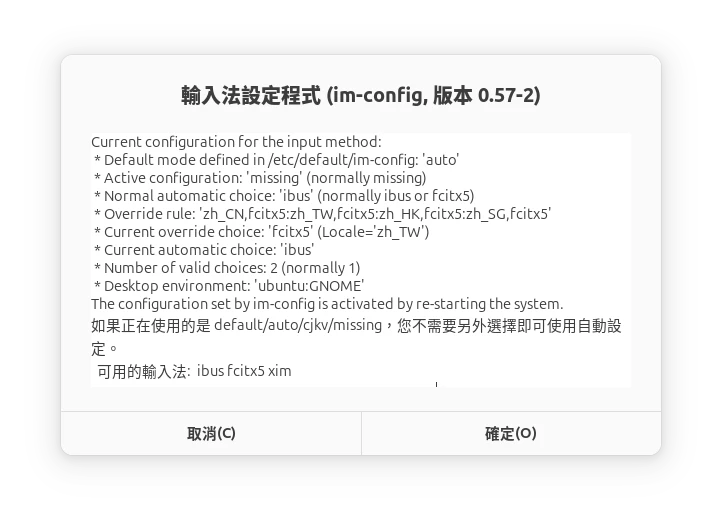
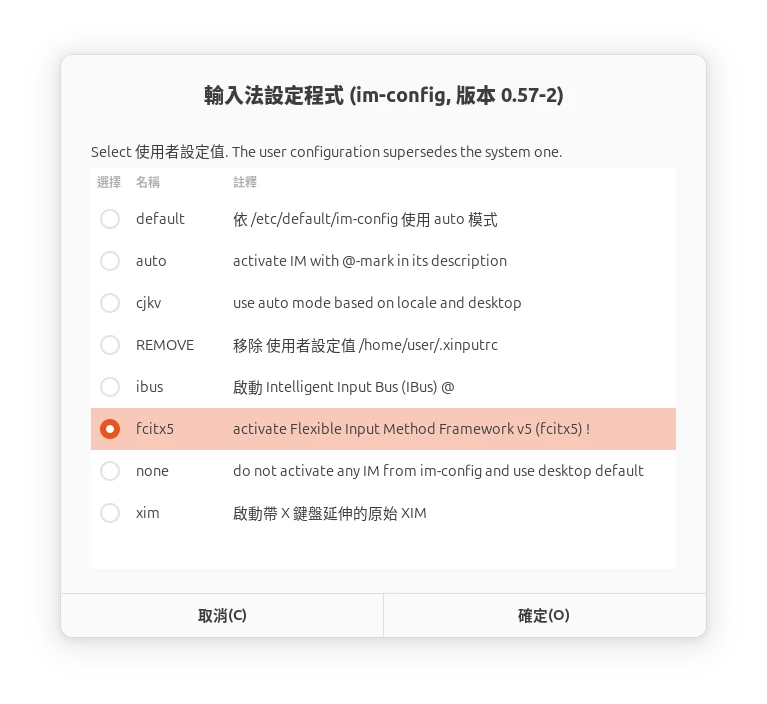
輸入法框架選取Fcitx5,確認後關閉視窗,然後重開機
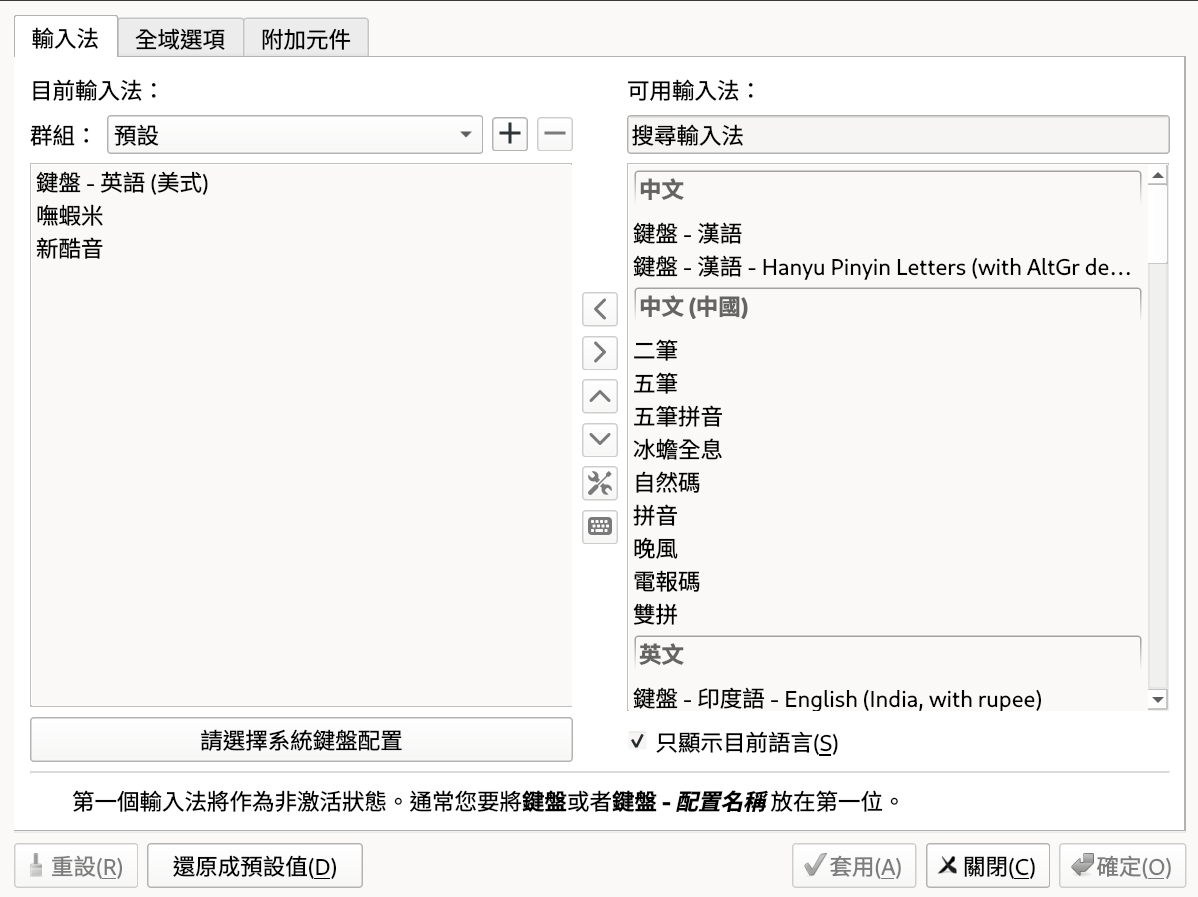
Fictx5設定
開啟Fcitx5設定面板,新酷音注音輸入法應該已經啟用。 若無則從右邊面板,取消勾選「只顯示目前語言」,找到「新酷音」,將其加入到左邊的面板
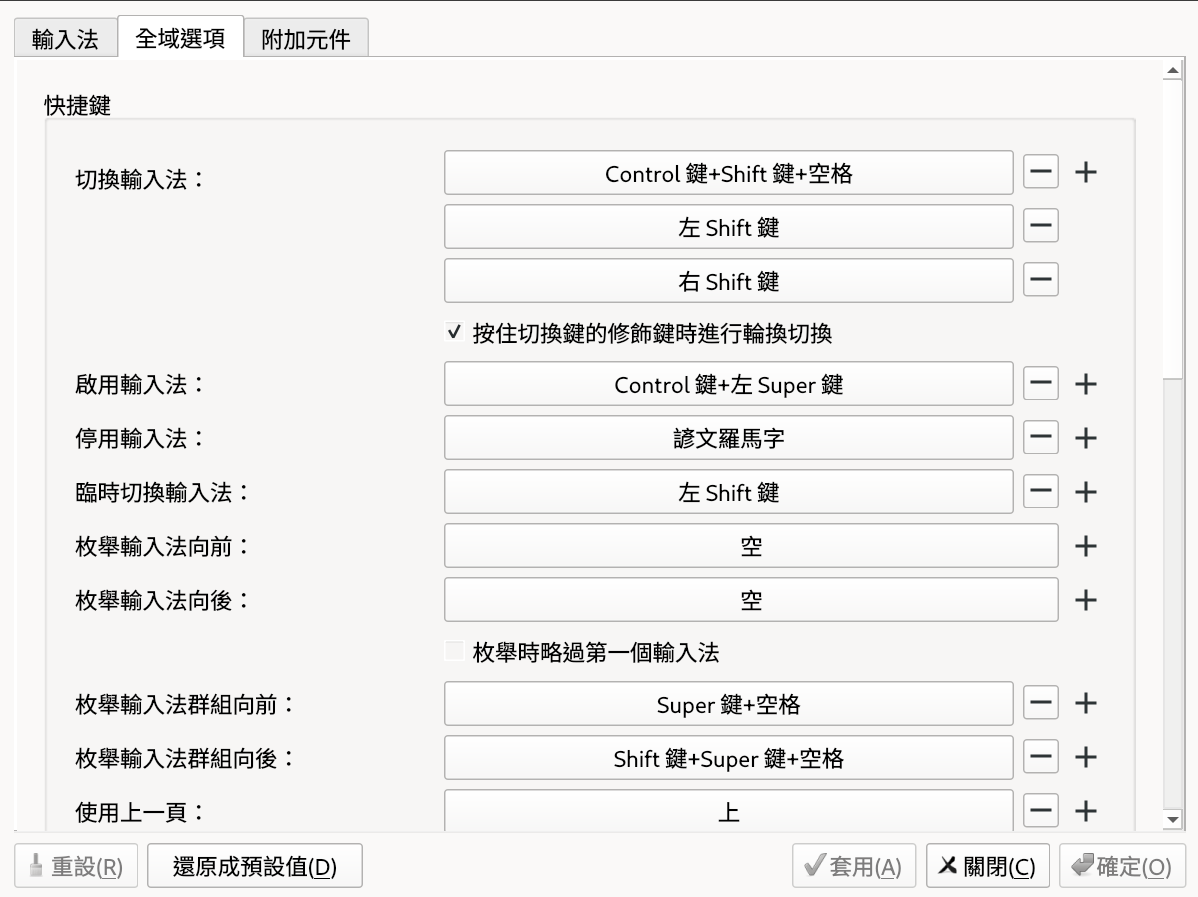
Fictx5設定面板全域選項中,設定輸入法切換法
瀏覽器無法切換到中文輸入處理方法
Wayland桌面工作階段會帶來許多問題,其中最常見的就是瀏覽器效能下降的問題。 因為有些瀏覽器預設跑在XWayland模式,所以看起來會卡卡的。所以要手動啟用Wayland模式。 但是有的瀏覽器啟用Wayland模式反而出現了其他問題,下面就要來討論如何解決這些問題。
如何確認自己是使用Wayland工作階段
使用echo $XDG_SESSION_TYPE指令即可得知是目前桌面工作階段x11還是wayland。 GNOME 42以上版本預設使用Wayland,登入畫面GDM右下角齒輪會有GNOME與GNOME on Xorg的選項。 KDE Plasma 6以上版本預設使用Wayland,登入畫面SDDM左下角有Plasma (Wayland)與Plasma (X11)的選項。 如果覺得Wayland問題過多,嘗試切換回X11工作階段。
強制瀏覽器使用純Wayland工作階段
- Wayland工作階段,Firefox (v.121以上) 預設會自動使用Wayland, 不用再設定MOZ_ENABLE_WAYLAND=1環境變數了。 開啟about:config頁面可得知是否正在使用Wayland。
- Google Chrome (v.139) 預設使用Wayland,這點可以用xlsclients指令確認, 如果沒有列出google-chrome-stable,就是在使用Wayland。
#如果仍是使用X11,編輯Chrome的Desktop Entry,修改Chrome的啟動選項:
sudo gedit /usr/share/applications/com.google.Chrome.desktop
sudo gedit /usr/share/applications/brave-browser.desktop
#在Exec的後面加上 --enable-features=UseOzonePlatform --ozone-platform=wayland --enable-wayland-ime
Exec=/usr/bin/brave-browser-stable %U --enable-features=UseOzonePlatform --ozone-platform=wayland --enable-wayland-ime
Exec=/usr/bin/brave-browser-stable --enable-features=UseOzonePlatform --ozone-platform=wayland --enable-wayland-ime
Exec=/usr/bin/brave-browser-stable --incognito --enable-features=UseOzonePlatform --ozone-platform=wayland --enable-wayland-ime